
Photos in Calendar Clock
There are two ways of showing photos in Calendar Clock. This article explains the difference between the two ways and some useful settings regarding them.
Small photos in messages and alarms
These are the photos that can be added when creating a message via the Administrator app.
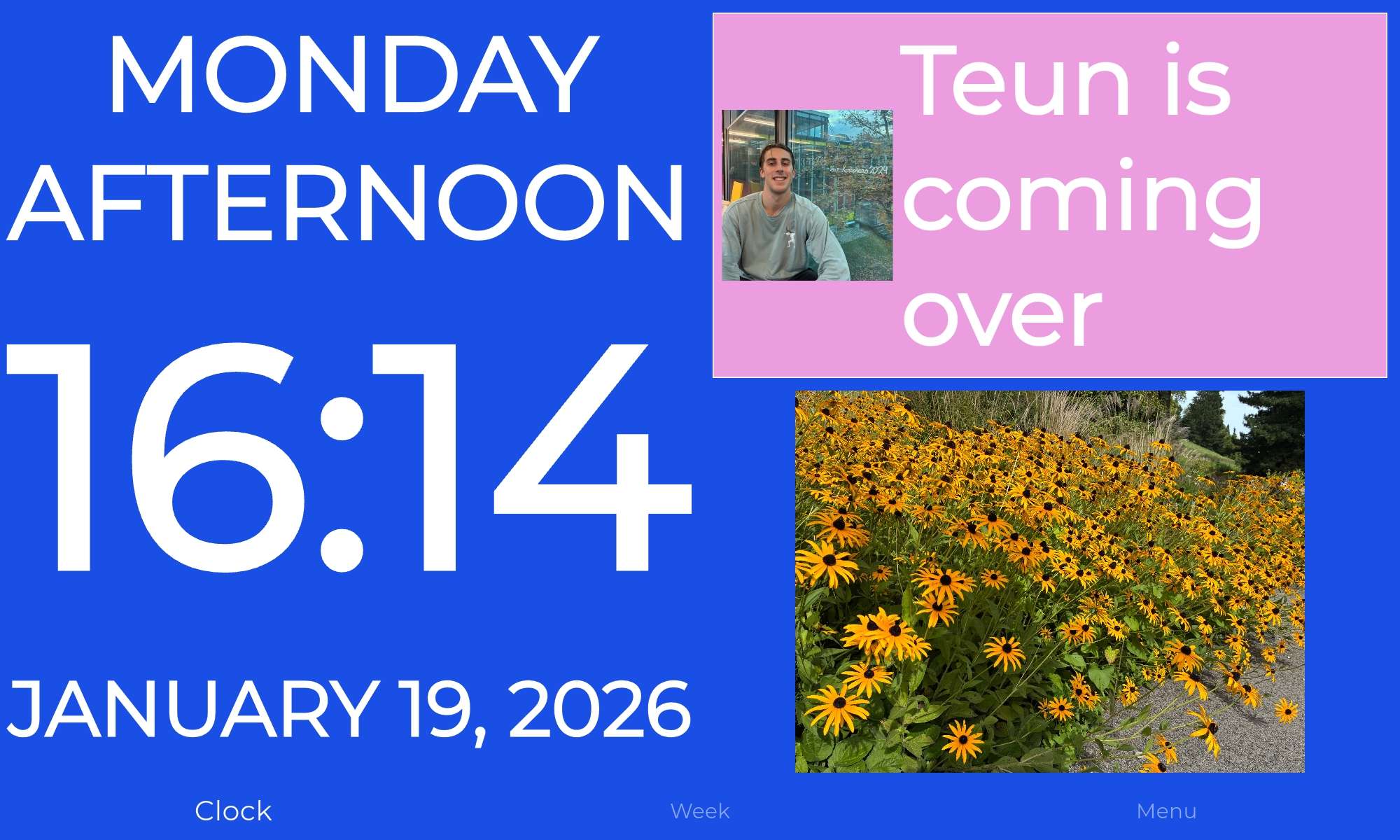
These photos are shown in a small size next to a message or in big on the alarm screen.
These photos are meant to be used for messages such as "Anne is coming over today". In that case, it is nice to have a picture of Anne next to the message.
Another way to use this feature is for medication, namely by showing a picture of the medication that should be taken.
This feature should not be used for holiday or family photos. For that, use the feature in the next section.
Big photos in a carousel
These are the photos that can be added via the Administrator app under Preferences -> Photos.
These photos are shown in a big size in a photo carousel that is visible on the main screen of Calendar Clock.
This feature is meant to be used for holiday photos, family photos, or other photos that you would like to see on the main screen of Calendar Clock.
It is possible to add descriptions below each photo. These descriptions can be used to explain what is shown on the photo.
It is also possible to set how often the photos should change.
Finally, it is possible to set whether clicking the photo enlarges it or goes to the next picture in the carousel.